
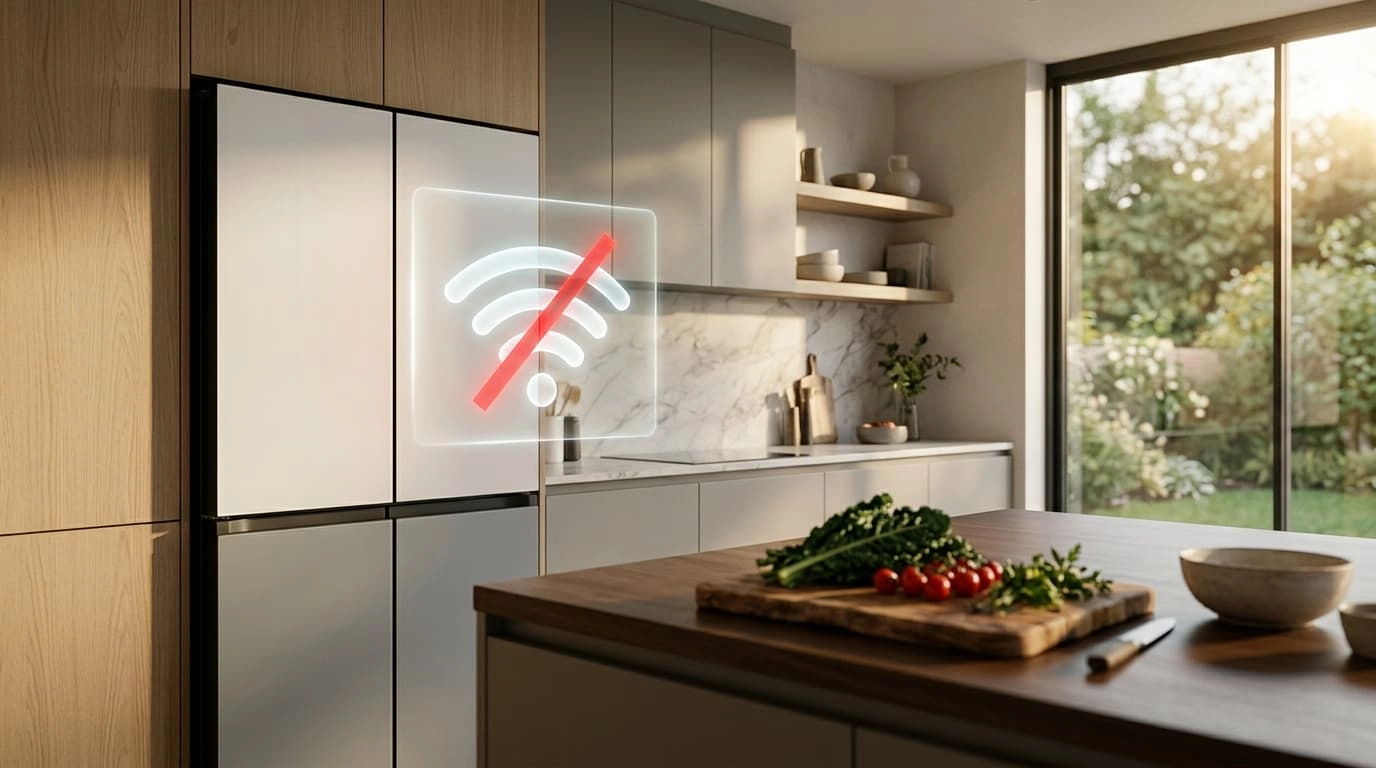
How to Disable Wi-Fi on Samsung Bespoke Fridge (Step-by-Step 2026 Guide)
The Samsung Bespoke series is famous for its gorgeous, highly customizable exterior glass panels and cutting-edge, high-tech features. Out of the box, these modern refrigerators are absolutely desperate to connect to your home Wi-Fi network and sync with the Samsung SmartThings app.
But what if you just want a refrigerator that keeps your food cold without logging your daily grocery habits, sending unnecessary push notifications to your phone, or sitting as an open, unpatched digital vulnerability on your private home network?
You are not alone in wanting to manually “dumb down” your smart appliance. The debate over connected, Internet of Things (IoT) appliances is rapidly growing, a topic which we cover extensively in our Smart Fridge vs Regular Refrigerator analysis. If you have decided you firmly want your appliance off the grid, here is the complete, step-by-step guide on how to safely and permanently disable the Wi-Fi on your Samsung Bespoke refrigerator.
The Quick Answer
To disable the Wi-Fi on a Samsung Bespoke fridge, open the door to access the internal control panel. Press and hold the “Door Alarm” and “Fridge” buttons simultaneously for 3 to 5 seconds until the Wi-Fi icon stops blinking and disappears. If you have a touchscreen model, navigate to Settings > Network > Wi-Fi > Off. For total privacy, you must also open the SmartThings app on your phone, locate the fridge, and tap “Remove Device” to sever the cloud connection.
Why Is It So Hard to Find the “Off” Switch?
Unlike an airplane mode button on your smartphone or a simple physical toggle switch on a router, Samsung does not make it overtly obvious how to sever the appliance’s internet connection. This is an intentional design choice.
The entire Bespoke series is built around the SmartThings ecosystem, and the manufacturer desperately wants the appliance online to collect diagnostic data, push mandatory firmware updates, and send you alerts (like when the door is left open or when it is time to order a new, highly profitable water filter). In 2026, consumer data is a massive commodity; tracking how often you open your fridge doors is valuable behavioral data.
The Fatigue of Digital Appliances
However, many users experience constant Wi-Fi disconnection errors, possess valid privacy concerns regarding kitchen microphones and cameras, or simply have absolutely no desire to use the companion app to monitor a box of cold food. If you are tired of dealing with cryptic digital errors (similar to the frustrating diagnostic loops we cover in our LG Fridge Error Code FF E Explained guide), disconnecting the Wi-Fi entirely is a great way to simplify your machine and regain your peace of mind.
Method 1: The Control Panel Disconnect (Soft Disable)
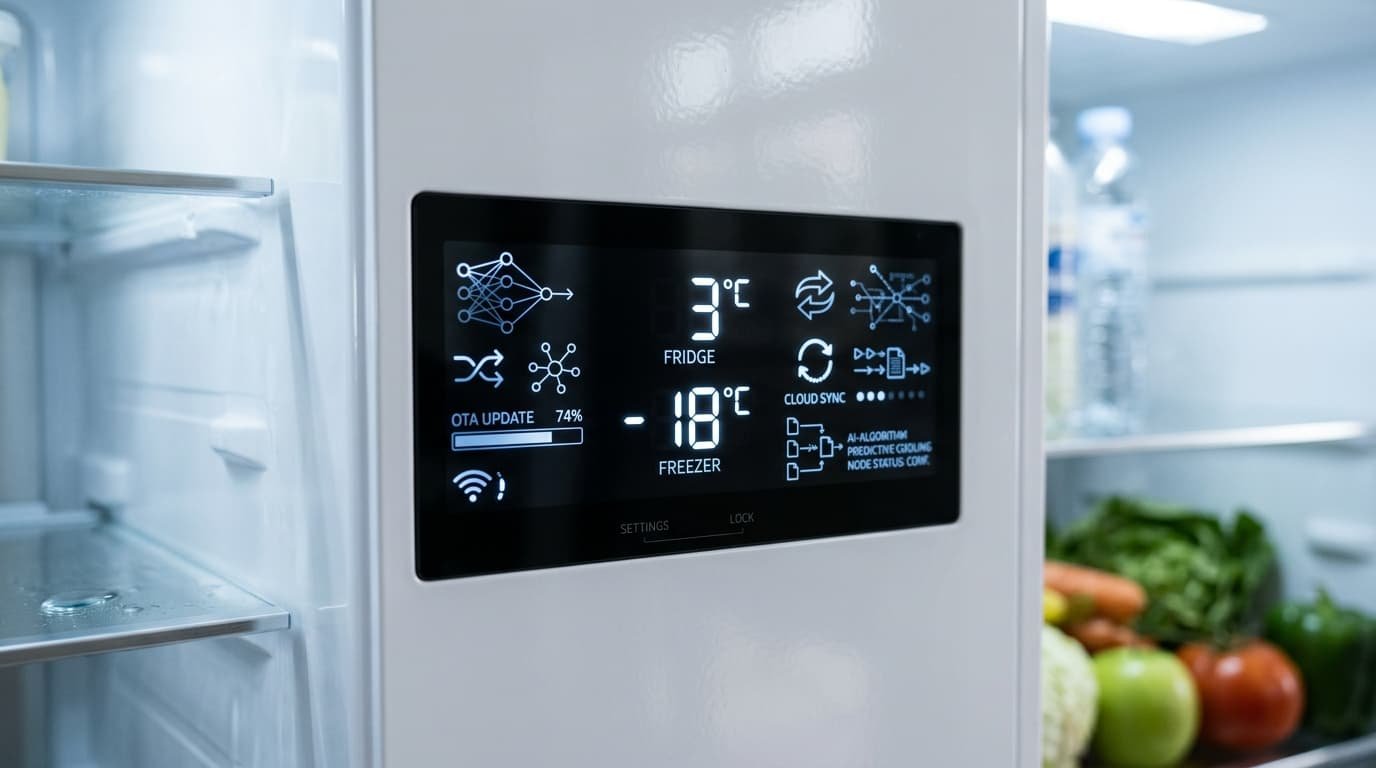
The easiest way to turn off the Wi-Fi broadcasting from the fridge is directly through the internal control panel. Depending on your specific Bespoke model (4-Door Flex, French Door, or Bottom Freezer), the sleek, minimalist panel is usually located inside the main refrigerator cabin on the right or left internal wall to keep the exterior glass looking clean.
Step-by-Step Instructions:
- Open the refrigerator doors and locate the digital control panel.
- Wake up the panel by tapping any button or pressing the digital screen.
- Tap the “O” (Circle) or “Settings” icon to navigate through the horizontal menu options until you find the network or Wi-Fi symbol.
- The Secret Combo: Press and hold the “Door Alarm” button and the “Fridge” temperature button simultaneously for about 3 to 5 seconds.
(Note: On some newer touchscreen “Family Hub” models, you simply navigate the Android-style interface to Settings > Network > Wi-Fi > Off). - Watch the display. The Wi-Fi icon on the digital panel should blink rapidly and then disappear or turn completely off.
- This physically stops the fridge’s internal wireless card from actively broadcasting its setup signal or frantically searching for your router.
Method 2: The SmartThings “Forget” Method (Cloud Disable)
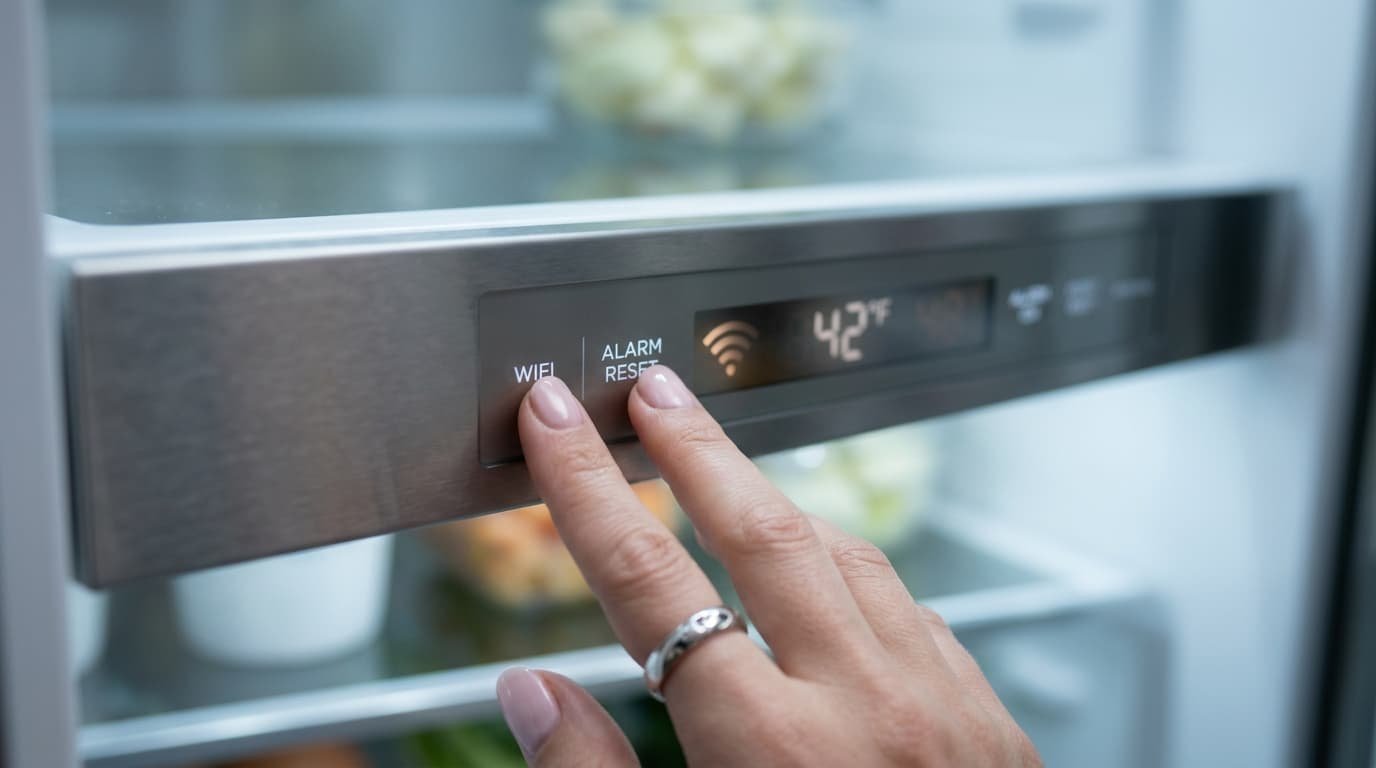
If you already connected the fridge to your home network during the initial installation phase and now want it gone, turning it off at the panel isn’t enough. You need to permanently remove it from the cloud app to stop the constant background data syncing and prevent the app from sending you “Device Offline” warning notifications.
Step-by-Step Instructions:
- Open the SmartThings App on your smartphone.
- Navigate to the “Devices” tab at the bottom of the screen and find your Bespoke Refrigerator icon.
- Tap on the Refrigerator to open its specific temperature and control page.
- Tap the Three Dots (Menu) located in the top right corner of the screen.
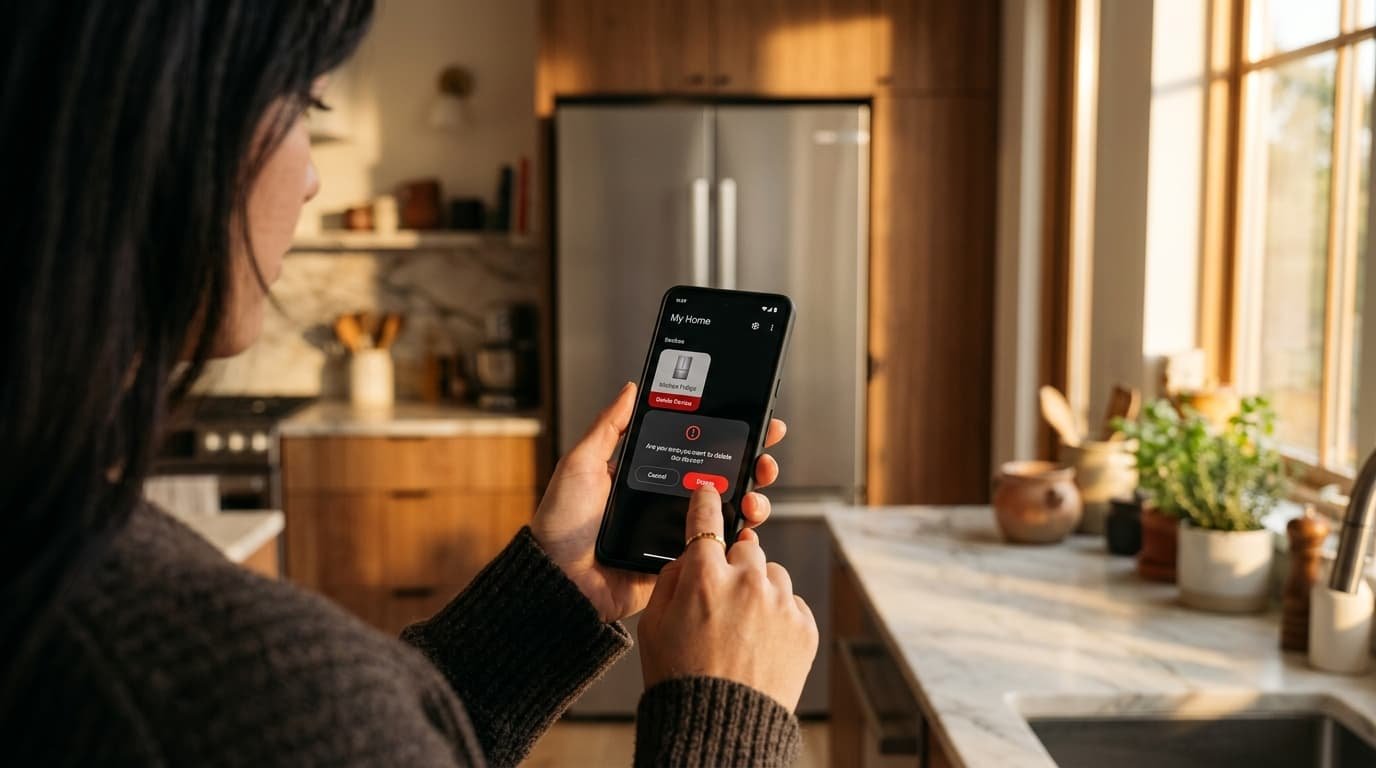
- Select “Edit” and then scroll to the bottom and tap “Delete device” or “Remove device”. Confirm your choice.
The “Nuclear” Option: The Router Block
If you are highly security-conscious and want to ensure the fridge can absolutely never “phone home” to Samsung servers, you can block it at the source.
Once removed from the app, go into your home internet router settings (typically by typing 192.168.1.1 into a web browser, or via your ISP’s mobile app). Find the “Connected Devices” or “DHCP Client List,” locate the fridge’s MAC address, and manually assign it to your router’s Blocklist. Even if the fridge turns its Wi-Fi card back on after a power outage, your router will refuse to give it internet access. It is completely severed.
The Hardware Reality: Ice Makers and Diagnostics
A common fear among consumers is that “dumbing down” a smart fridge will break it. It is incredibly important to note that disconnecting the Wi-Fi will only disable cloud-based features: you will lose “Door Open” smartphone notifications, remote temperature controls, and Bixby voice commands.
However, it will absolutely not affect the mechanical cooling performance, the compressor cycle, or the physical ice maker. The primary motherboard that runs the thermodynamics of the appliance operates entirely independent of the Wi-Fi card.
The Elephant in the Room: Samsung Ice Makers
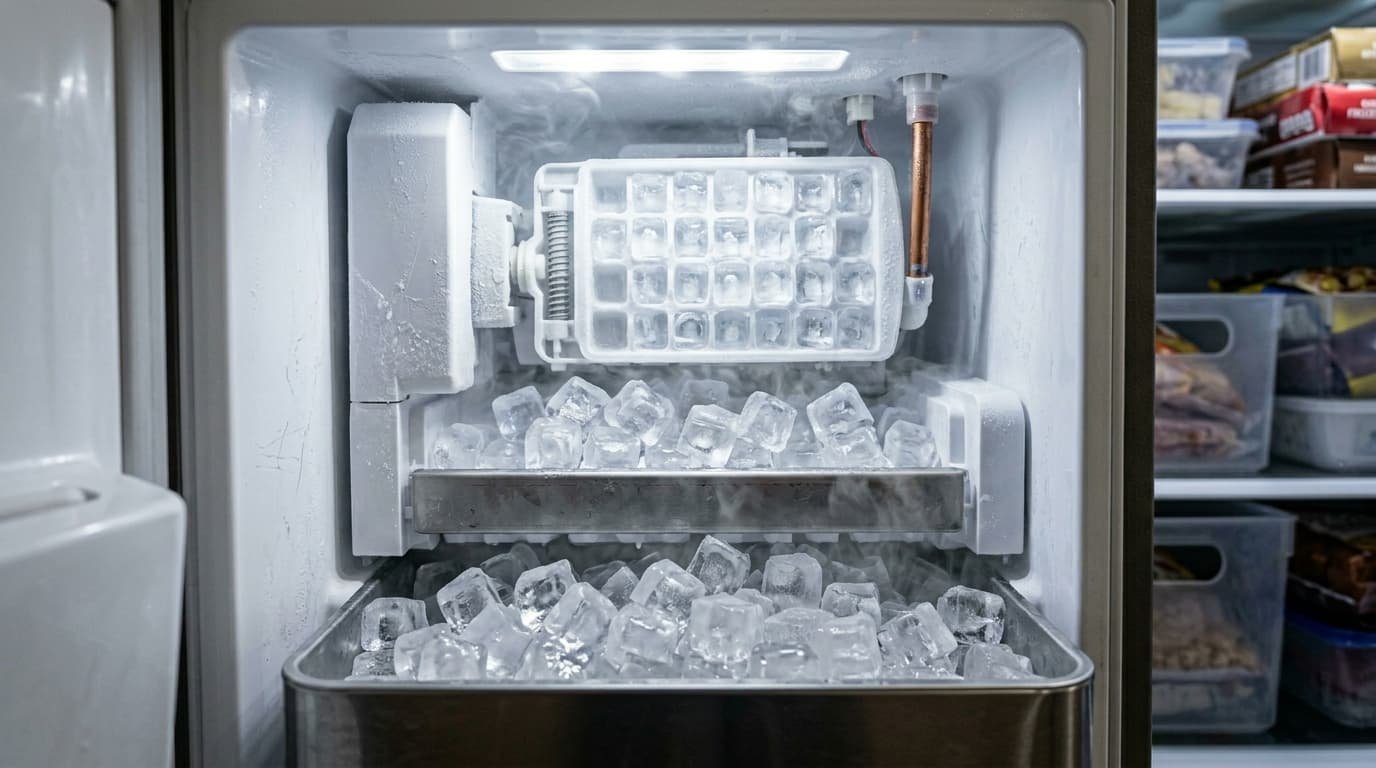
Speaking of Samsung ice makers, they are notoriously, infamously problematic, with or without a Wi-Fi connection. The dreaded freeze-over issue is a mechanical flaw, not a software bug. If you are desperately troubleshooting your appliance because the ice maker is acting up, disabling the internet will not fix a mechanical freeze-over.
Instead, you need to consult our dedicated DIY repair manual on How to Fix a French Door Ice Maker That Keeps Freezing. If the unit is completely iced shut and refusing to drop ice, you will likely need to replace the physical heating components to melt the frost buildup, which we cover extensively in the OEM Replacement Heater for Samsung Ice Maker guide.
Reclaiming True Appliance Reliability
There is a growing movement of homeowners deliberately seeking out “dumb” appliances. If dealing with mandatory smart tech updates, finicky touchscreen displays, and failing in-door ice makers has you regretting your high-tech purchase entirely, it might be time to look into pure, mechanical reliability.
The longest-lasting refrigerators on the market today are the ones with the fewest moving parts and the fewest circuit boards. Check out our expert recommendations for the Most Reliable Refrigerator Without Ice Maker to find commercial-grade appliances built to last 20 years without ever asking you for a Wi-Fi password.
Explore More Appliance Diagnostics
Don’t stop here! Visit our complete hub for more expert troubleshooting tips, safety protocols, and updated buying recommendations for 2026.
FAQ: Disconnecting Your Smart Fridge
2026 Guide: Wi-Fi, Ice Makers, and Offline Alternatives
Privacy Tip: If you want to permanently disable the Wi-Fi on your Samsung Bespoke, navigate to the “Network” settings on the internal display panel and select “Reset” or “Forget Network”.

